
SARTrack App: help
For the SARTrack Android App: how it works, how to set it up and how to use it.
How does it work?
On a WiFi network, the App first looks for a SARTrack Local Database Server there, and uses it when it finds one: in the field, on the field WiFi, without internet. Otherwise it connects to your Internet Server, over the WiFi or over the mobile network.
While you are logged in, SARTrack keeps running in the background (its icon shows at the top of the screen): it stays in touch with the Server, so messages, Tasks and Log entries arrive at once, and your position is sent while Send my position is on.
Out of coverage, nothing is lost: your positions, Clues, messages and Log entries are kept on the phone and sent by themselves as soon as there is a connection again.
Your position: sent by how you move: more often when you move fast or turn, every 5 minutes while you stand still. After 24 hours the App asks whether to keep sending it.
Setting it up
Every App user needs a login, and every login belongs to a person in SARTrack's Personnel. SARTrack sends the person an invitation by e-mail: the download link, the GroupID, a one-time invitation code and the Internet Server. A Supervisor sets it up in SARTrack (the Windows version), connected to your Database Server.
For a member: in the Personnel window
- Open Personnel and choose the person (or make a New Person). Make sure their e-mail address is right: the invitation goes there.
- On their App login, tick Send an invitation to the SARTrack App (by e-mail) and click OK.
- SARTrack makes a login for the App only (the access level 'Private': it cannot be used in SARTrack itself or on the web site) and e-mails the invitation code.
For a new login: in the Database Users window
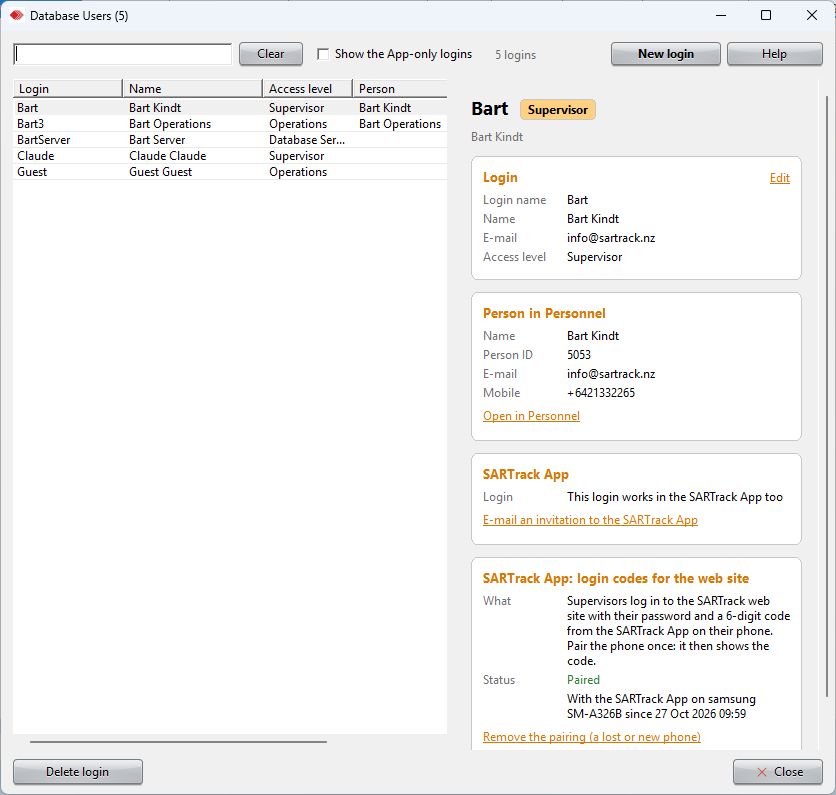
- Open Database Users (Main Menu: DTB Access) and click New login.
- Fill in the login name, the names, the e-mail address (required), the access level and a password. SARTrack finds the person in Personnel by the e-mail address, or makes them a new person.
- After saving, SARTrack offers to send the invitation to the SARTrack App. It can also be sent later: the login's SARTrack App card, E-mail an invitation to the SARTrack App.
Someone with their own login (Operations or Supervisor, for example) logs in to the App with that same login name and password: their invitation says so, and has no code.
On the phone
- Install the SARTrack App (see Download).
- On the login screen tap I have an invitation code, and enter the GroupID, the invitation code and the Internet Server from the e-mail. The code works once, within 14 days.
- The App logs in, and keeps the login on the phone.
Logging in
- With an invitation code
- Tap I have an invitation code and enter the GroupID, the code and the Internet Server from the invitation e-mail (see Setting it up). The App gets its own login by itself.
- With your own login
- Choose the Internet Server, and enter your organisation's GroupID, your login and password (the same as in SARTrack).
- Remember on this phone
- Keeps the login on the phone, also after logging out: the login screen then offers Log in again. Forget this phone's login removes it.
- The Operation
- After logging in, choose the Operation. Your position is only sent while you are in an Operation.
- Callsign
- Made by the Server from your login. Licensed radio amateurs can use their own callsign: the You tab, I am a licensed radio amateur.
Pairing the phone: login codes for the web site
A Supervisor (and every level above) logs in to the SARTrack web site with a login, a password and a 6-digit code. Pairing makes your phone the place that code comes from. You pair it once, for your login in your organisation (its GroupID), on your organisation's Server.
Why it matters
- A password alone is not enough. The web site shows the Operation, the Personnel details and the Missing Person. With login codes, someone who learns a Supervisor's password still cannot open them: they would also need that person's phone (or their e-mail).
- It works without internet. The phone works the code out itself; it changes every 30 seconds. So it also works on a Local Server in the field, where an e-mail can never arrive. Without a paired phone, the web site sends the code by e-mail, and that needs internet.
- It follows you between your organisation's Servers. A pairing made on the Local Server reaches the Internet Server by itself, and the other way round.
Only needed for Supervisor logins and higher. A login for the App only (an invitation login) does not need it.
Pairing: the easy way, asked from the phone
On the phone:
- Log in to the App with your own login: the same login and password you use on the web site.
- On the You tab, under Login codes for the SARTrack web site, tap Pair this phone. The App asks the Server, and waits for 10 minutes at most.
In SARTrack (Windows), connected to the same Server:
- A Supervisor, or you yourself logged in with that login, opens Database Users (Main Menu: DTB Access). A red bar shows: The SARTrack App asks to be paired, with the login and the phone. The request is also in the Operation's Log, as an open entry: right-click it, Open Database Access.
- Check that it really is that person's phone, then press Pair <login>'s phone. (Refuse if it is not.)
On the phone:
- The App says Paired. Done.
Pairing with a pairing code
When nobody can press the button in SARTrack in time, or the request does not arrive:
- On a PC, make a pairing code for the login: in SARTrack, Database Users, the login, Pair the App (or in the login's own window: App codes, Pair...). Or on the web site: your name at the top, Login codes. An 8-digit code shows. It works once, for 10 minutes.
- On the phone, logged in with that login and connected to the same Server: You tab, Login codes for the SARTrack web site, enter the 8-digit code and tap Pair.
Logging in to the web site with the code
- On the web site, enter your login and password. The web site then asks for the code.
- The phone shows a notification, Web login waiting for your code: tap it. Or open the App yourself: You tab, Show the web login code.
- Type the 6-digit code on the web site before it changes.
A new or lost phone
- Pairing again (on the new phone) replaces the phone paired before.
- A lost phone: in SARTrack, Database Users, the login, Remove the pairing (a lost or new phone). Until a phone is paired again, the web site sends the code by e-mail.
- On the phone itself, Remove takes the pairing off the phone and off the Server.
- One phone can be paired for several organisations (each GroupID and login on its own line).
The You tab
- My availability
- Available or Not available to be called out. It stays until you change it, and after an Operation you are back to it. SARTrack shows it in its Personnel window.
- My Operation Status
- En route, Arrived, Available, Departed or Unavailable, with a comment (an ETA, where from). In a Team, your status is set in SARTrack's Team Setup.
- Send my position
- Switches the sending of your position on and off, with the time of the last GPS position and the last one sent. Keep tracking with the screen off appears when the phone may stop it to save battery.
- Login codes for the SARTrack web site
- For Supervisors: the 6-digit code for logging in to the web site. When the web site waits for it, the phone shows a notification that opens the code. See Pairing the phone.
- Also
- Change or Leave the Operation, the Server the App is connected to, a newer App when there is one, and Log out.
Your availability and status need a login that is linked to your record in SARTrack's Personnel, as an invitation login always is.
Sending a Clue
A Clue is something found in the field. Tap Send Clue on the map, say what was found, and take a photo (or choose one). The Clue is placed where the phone is now.
The App uses the phone's GPS for it. When the position is not exact yet (not from the GPS, more than 50 m out, or older than 2 minutes) it says so: Wait for the GPS, or Send anyway.
With a connection the Clue goes to the Server at once; without one, as soon as there is a connection again. In an EMCOMM Operation it is called an Incident.
Feedback
A problem with the App? On the You tab, under A problem with the App?, tap Send my log to the Server and say what happened. Or e-mail support@sartrack.nz.
A screenshot helps: on most phones, press Volume-Down and Power together for a second, then share it by e-mail.